> ## Documentation Index
> Fetch the complete documentation index at: https://docs.junction.com/llms.txt
> Use this file to discover all available pages before exploring further.
# Bring Your Own OAuth
> Use Bring Your Own OAuth (BYOO) to connect wearable providers through Junction using your own branded OAuth client credentials.
Bring Your Own OAuth (BYOO) is available for [the Grow and Scale plans](https://tryvital.io/pricing).
WHOOP BYOO is available for [the Launch, Grow and Scale plans](https://tryvital.io/pricing). See [our WHOOP Guide](/wearables/guides/whoop) for more information.
Junction supports bringing your own OAuth application credentials, so that your users would see the OAuth consent flow
in your own brand when they connect to cloud-based OAuth providers.
This provides a more cohesive experience for your users as it gives a truly white-labeled experience for your application/mobile application.
Typically when you don't use custom credentials your OAuth screen will look like this and use our shared credentials:
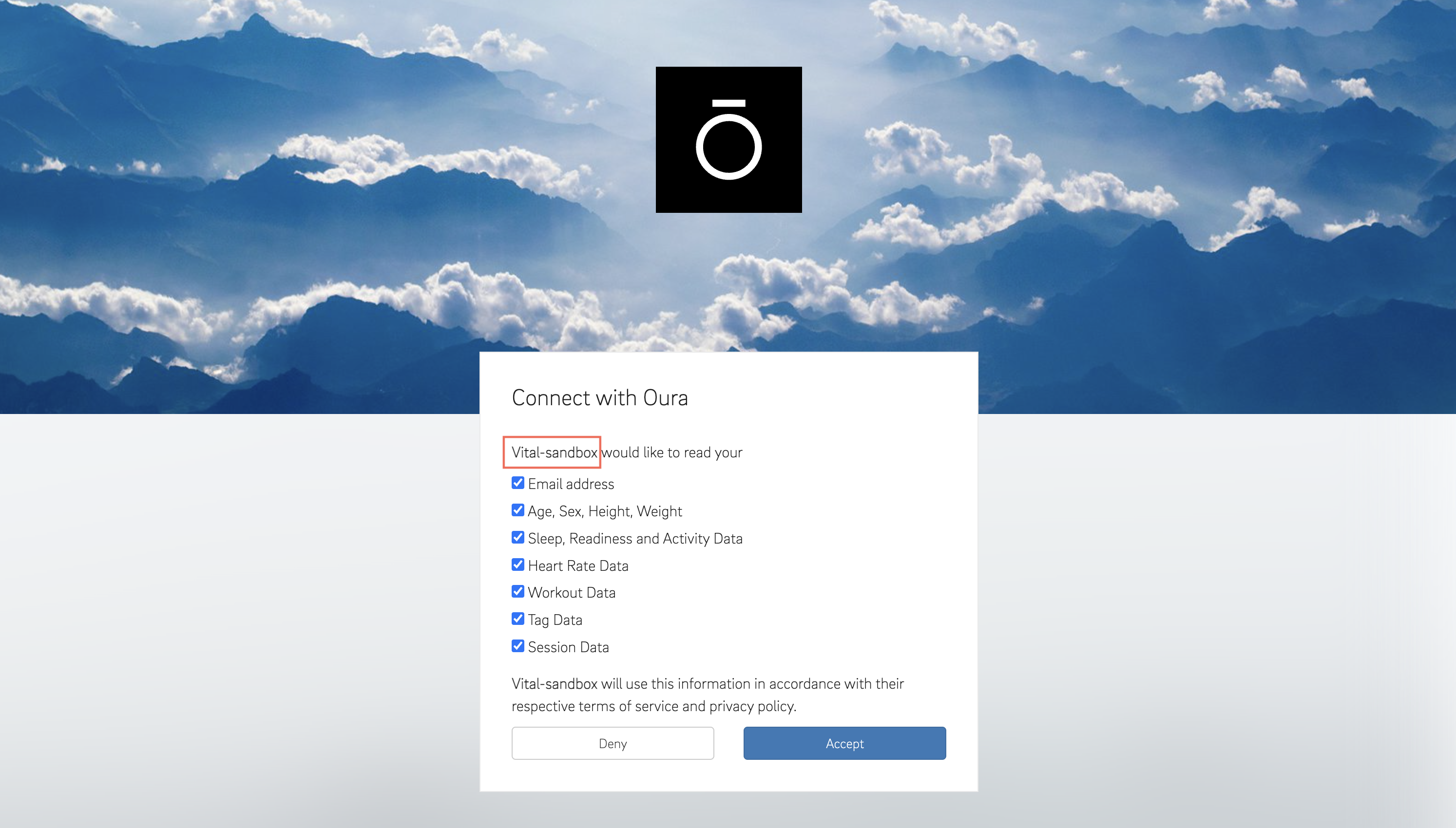 With custom credentials you can use your own team name and set up your own logo for the provider.
## OAuth Providers supporting BYOO
Some BYOO providers do not have a developer program with open sign-up.
| Provider | Slug | Remarks |
| --------------------------------------------------- | ------------------- | --------------------------------------- |
| [Fitbit](https://www.fitbit.com/global/uk/home) | `fitbit` | - |
| [Garmin](https://www.garmin.com) | `garmin` | - |
| [Google Fit](https://www.google.com/fit/) | `google_fit` | - |
| [Oura](https://ouraring.com) | `oura` | - |
| [Strava](https://www.strava.com) | `strava` | - |
| [Wahoo](https://wahoofitness.com) | `wahoo` | - |
| [Withings](https://www.withings.com) | `withings` | - |
| [Dexcom](https://www.dexcom.com) | `dexcom_v3` | [↗️ Guide](/wearables/guides/dexcom_v3) |
| [WHOOP](https://www.whoop.com) | `whoop_v2` | [↗️ Guide](/wearables/guides/whoop) |
| [Polar](https://www.polar.com/accesslink-api/) | `polar` | - |
| [Cronometer](https://www.cronometer.com) | `cronometer` | - |
| [Omron](https://www.omron-healthcare.com) | `omron` | - |
| [MyFitnessPal API](https://www.myfitnesspalapi.com) | `my_fitness_pal_v2` | - |
| [MapMyFitness](https://developer.mapmyfitness.com) | `map_my_fitness` | - |
| [Ultrahuman](https://www.ultrahuman.com) | `ultrahuman` | - |
### Provider Rate Limits
This section documents the *starting* rate limit of a brand new OAuth application, should you choose to BYOO.
| Provider | Starting Rate Limit |
| ----------------------------------------------- | ----------------------------------------------------------------------------------- |
| [Fitbit](https://www.fitbit.com/global/uk/home) | 150 requests per hour per user |
| [Garmin](https://www.garmin.com) | 10,000 days of data per minute |
| [Google Fit](https://www.google.com/fit/) | 600 requests per minute |
| [Oura](https://ouraring.com) | 5,000 requests per 5 minutes |
| [Strava](https://www.strava.com) | 100 requests per 15 minutes
With custom credentials you can use your own team name and set up your own logo for the provider.
## OAuth Providers supporting BYOO
Some BYOO providers do not have a developer program with open sign-up.
| Provider | Slug | Remarks |
| --------------------------------------------------- | ------------------- | --------------------------------------- |
| [Fitbit](https://www.fitbit.com/global/uk/home) | `fitbit` | - |
| [Garmin](https://www.garmin.com) | `garmin` | - |
| [Google Fit](https://www.google.com/fit/) | `google_fit` | - |
| [Oura](https://ouraring.com) | `oura` | - |
| [Strava](https://www.strava.com) | `strava` | - |
| [Wahoo](https://wahoofitness.com) | `wahoo` | - |
| [Withings](https://www.withings.com) | `withings` | - |
| [Dexcom](https://www.dexcom.com) | `dexcom_v3` | [↗️ Guide](/wearables/guides/dexcom_v3) |
| [WHOOP](https://www.whoop.com) | `whoop_v2` | [↗️ Guide](/wearables/guides/whoop) |
| [Polar](https://www.polar.com/accesslink-api/) | `polar` | - |
| [Cronometer](https://www.cronometer.com) | `cronometer` | - |
| [Omron](https://www.omron-healthcare.com) | `omron` | - |
| [MyFitnessPal API](https://www.myfitnesspalapi.com) | `my_fitness_pal_v2` | - |
| [MapMyFitness](https://developer.mapmyfitness.com) | `map_my_fitness` | - |
| [Ultrahuman](https://www.ultrahuman.com) | `ultrahuman` | - |
### Provider Rate Limits
This section documents the *starting* rate limit of a brand new OAuth application, should you choose to BYOO.
| Provider | Starting Rate Limit |
| ----------------------------------------------- | ----------------------------------------------------------------------------------- |
| [Fitbit](https://www.fitbit.com/global/uk/home) | 150 requests per hour per user |
| [Garmin](https://www.garmin.com) | 10,000 days of data per minute |
| [Google Fit](https://www.google.com/fit/) | 600 requests per minute |
| [Oura](https://ouraring.com) | 5,000 requests per 5 minutes |
| [Strava](https://www.strava.com) | 100 requests per 15 minutes
1,000 requests per day |
| [Wahoo](https://wahoofitness.com) | 200 requests per 5 minutes
1,000 requests per hour
5,000 requests per day |
| [Withings](https://www.withings.com) | 120 requests per minute |
| [Dexcom](https://www.dexcom.com) | 60,000 requests per hour |
| [WHOOP](https://www.whoop.com) | 100 requests per minute
10,000 requests per day |
| [Polar](https://www.polar.com/accesslink-api/) | 20 requests per 15 minutes per user
100 requests per day per user |
| [Cronometer](https://www.cronometer.com) | N/A |
| [Omron](https://www.omron-healthcare.com) | N/A |
## Setting up your OAuth credentials
If a provider requires redirect URIs to belong to a domain you own, see [Hosting OAuth Callbacks on Your Own Domain](/wearables/connecting-providers/bring-your-own-oauth/callback-endpoints).
### Through the Org Management API
Org Management API is available for [the Scale plan](https://tryvital.io/pricing).
Use the [Prepare Team Custom Credentials](/api-reference/org-management/team-custom-credentials/prepare-team-custom-credentials)
endpoint to obtain the instructions to set up your OAuth application.
Use the [Set Team Custom Credentials](/api-reference/org-management/team-custom-credentials/upsert-team-custom-credentials) endpoint
to apply your OAuth application credentials to your Junction Team.
BYOO credentials for the following providers are immediately active once set through the [Set Team Custom Credentials](/api-reference/org-management/team-custom-credentials/upsert-team-custom-credentials):
| Provider | Slug |
| --------------------------------------------------- | ------------------- |
| [Garmin](https://www.garmin.com) | `garmin` |
| [Google Fit](https://www.google.com/fit/) | `google_fit` |
| [Oura](https://ouraring.com) | `oura` |
| [Strava](https://www.strava.com) | `strava` |
| [Wahoo](https://wahoofitness.com) | `wahoo` |
| [Withings](https://www.withings.com) | `withings` |
| [Dexcom](https://www.dexcom.com) | `dexcom_v3` |
| [WHOOP](https://www.whoop.com) | `whoop_v2` |
| [Polar](https://www.polar.com/accesslink-api/) | `polar` |
| [Cronometer](https://www.cronometer.com) | `cronometer` |
| [Omron](https://www.omron-healthcare.com) | `omron` |
| [Ultrahuman](https://www.ultrahuman.com) | `ultrahuman` |
| [MyFitnessPal API](https://www.myfitnesspalapi.com) | `my_fitness_pal_v2` |
| [MapMyFitness](https://developer.mapmyfitness.com) | `map_my_fitness` |
The following providers are not immediately active. You need to take a couple of extra steps to activate them:
[Fitbit](https://www.fitbit.com/global/uk/home) (`fitbit`)
1. You must press the "Verify" button on all the Webhook Subscribers in the Fitbit Developer Portal.
2. Once the buttons are gone and replaced by (usually zeroed) delivery statistics, it implies that Fitbit has completed the verification challenge with Junction.
### Through the Dashboard
To set up custom OAuth application credentials via the Dashboard, you need to do the following:
1. Create a developer account with the cloud-based OAuth providers.
2. Generate OAuth application credentials from your developer account. You can do this by going to the provider's developer account page and creating a new application.
3. Navigate to **Custom Credentials** under **Config** on the left sidebar in the Junction Dashboard.
4. Find the provider you want to configure and click the **Setup** button.
5. In the input form that appears, enter your **OAuth Client ID** and **OAuth Client Secret**.
Some OAuth providers are unavailable unless you can Bring Your Own OAuth (BYOO) — you will have to apply directly
to the provider for an OAuth application, and provide Junction your assigned credentials once the application is accepted.