> ## Documentation Index
> Fetch the complete documentation index at: https://docs.junction.com/llms.txt
> Use this file to discover all available pages before exploring further.
# Abbott LibreView
> Connect Abbott continuous glucose monitors like Freestyle Libre to Junction through the LibreView cloud platform integration.
## Overview
Junction supports two ways to connect to LibreView for Abbott CGMs:
| Provider Slug | Remarks |
| ------------------ | --------------------------------------------------------------------------------- |
| `abbott_libreview` | Connect via LibreView patient account in any region. |
| `freestyle_libre` | Connect via regional LibreView practices (Junction-managed, or custom practices). |
The abbott\_libreview provider is no longer supported for new connections. This change applies to organizations that do not already have at least one active abbott\_libreview connection. Existing abbott\_libreview connections will continue to sync as normal.
### `freestyle_libre` for practice-based connections
With the `freestyle_libre` integration, users have to share/connect their LibreView patient account
with either Junction's LibreView practice, or a custom practice of yours.
Junction accesses the patient CGM data as a member of the LibreView practice.
### `abbott_libreview` for patient-based connections
With the `abbott_libreview` integration, users can connect their Abbott CGM devices simply by signing in
with their LibreView patient account. Junction accesses the patient CGM data as their personal account.
* You would not need to maintain any LibreView practices.
* You would not need to instruct your users to connect their account to a LibreView practice, before they can attempt to connect via Junction Link.
#### ⚠️ Prepare for regular disconnection with `abbott_libreview`
Patient-based connections through `abbott_libreview` may **disconnect** at least once a year due to password rotation enforcement.
You can observe the error state through:
1. the [Provider Connection Error](/event-catalog/provider.connection.error) event; and
2. the [Get User Connections endpoint](/api-reference/user/get-users-connected-providers).
The following error types are relevant in this password rotation situation:
| Error Type | Remarks |
| --------------------------- | ---------------------------------------------------------------------------------------------------------------------------------------------------------- |
| `provider_credential_error` | The patient has changed their password. They need to re-connect with the new password via Junction Link. |
| `provider_password_expired` | Login is blocked due to password expiration. Once the patient has changed their password, they need to re-connect with the new password via Junction Link. |
When you detect a disconnection, guide your user to:
1. Sign into the LibreLink app or the LibreView web portal.
2. Update their account password.
3. Use the Junction Link Widget or your custom widget to re-establish the `abbott_libreview` connection.
## LibreView data uses a floating time basis
All LibreView (Freestyle Libre) data are on a **floating time basis**.
Please go through the [Timestamps and Time Zones](/wearables/providers/timestamps-and-time-zones) guide to understand the
implications, as well as how to properly handle floating time data.
## Libre Notes Timeseries
LibreView, in addition to standard CGM data, provides insights manually added by the user.
This data is available in the following types:
* `note`: A general note added by the user, often providing context for other entries.
* `carbohydrates`: Grams of carbohydrates logged by the user.
* `insulin_injection`: Units of insulin injected by the user, categorized as either `rapid_acting` or `long_acting`.
Timestamps for these events have hourly granularity and are marked with the beginning of the hour.
## Connecting a LibreView patient account (`abbott_libreview`)
### Junction Link Widget
Abbott LibreView is automatically available as an option in the [Junction Link Widget](/wearables/connecting-providers/launching_link).
### Junction Link API (custom widget)
If you intend to build a [custom widget on top of the Junction Link API](/wearables/connecting-providers/custom_widget), Abbott LibreView is
exposed as a **password provider**:
Start the linking process by [generating a short-lived Link Token](/api-reference/link/generate-link-token).
Submit the username and password of the LibreView patient account to the [Link Password Provider](/api-reference/link/link-password-provider) endpoint.
You need not specify any region in your request. Junction will match the correct LibreView region transparently.
**Important:** Abbott LibreView linking can take longer than other providers. We recommend configuring an extended client-side timeout (up to 60 seconds) when making this Link request. If your timeout is shorter, linking may fail even when credentials are valid.
The [Link Password Provider](/api-reference/link/link-password-provider) endpoint responds with `state: "pending_provider_mfa"`,
alongside the MFA method being used, as well as an MFA hint.
This means the user must complete multi-factor authentication before Junction can establish the connection. You should prompt the user
to input the verification code they received out-of-band.
Submit the MFA code to the [Complete Password Provider MFA](/api-reference/link/complete-password-provider-mfa) endpoint.
You must use the same Link Token you generated in Step 1.
The linking process is completed. Historical pulls are scheduled to start as soon as possible.
## Setting up practice-based connections (`freestyle_libre`)
### Adding users to a Practice
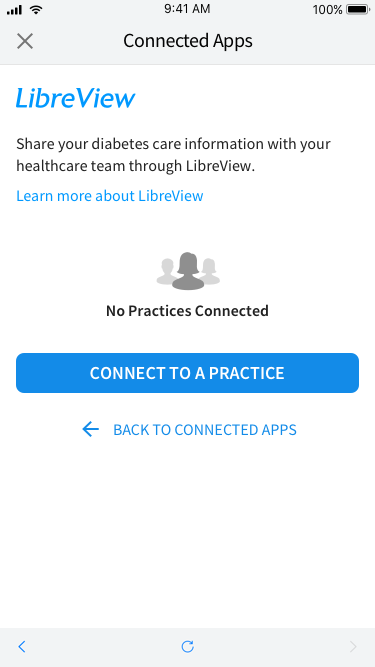
When integrating with Junction, you have two options: use Junction's practice, or yours. We call the latter a custom practice. Depending on the approach, you need to instruct your users to connect their Libre account to a practice.
This allows Junction to start pulling data from their account. This is done through the Libre app:
 ### Supported Regions
#### 🇺🇸 Junction US region
| Region Code | Region |
| ----------- | ------------- |
| `ca` | Canada |
| `hk` | Hong Kong |
| `in` | India |
| `kr` | South Korea |
| `ph` | Philippines |
| `sg` | Singapore |
| `tw` | Taiwan |
| `us`\* | United States |
*(\*) Default if region is unspecified.*
#### 🇪🇺 Junction EU region
| Region Code | Region |
| ----------- | -------------- |
| `ar` | Argentina |
| `at` | Austria |
| `au` | Australia |
| `be` | Belgium |
| `bh` | Bahrain |
| `br` | Brazil |
| `ch` | Switzerland |
| `cl` | Chile |
| `co` | Colombia |
| `cz` | Czechia |
| `de` | Germany |
| `dk` | Denmark |
| `eg` | Egypt |
| `es` | Spain |
| `fi` | Finland |
| `fr` | France |
| `gb`\* | United Kingdom |
| `gr` | Greece |
| `hk` | Hong Kong |
| `hr` | Croatia |
| `ie` | Ireland |
| `il` | Israel |
| `in` | India |
| `it` | Italy |
| `jo` | Jordan |
| `kr` | South Korea |
| `kw` | Kuwait |
| `lb` | Lebanon |
| `lu` | Luxembourg |
| `mx` | Mexico |
| `nl` | Netherlands |
| `no` | Norway |
| `nz` | New Zealand |
| `om` | Oman |
| `ph` | Philippines |
| `pl` | Poland |
| `pt` | Portugal |
| `qa` | Qatar |
| `sa` | Saudi Arabia |
| `se` | Sweden |
| `sg` | Singapore |
| `si` | Slovenia |
| `sk` | Slovakia |
| `tr` | Türkiye |
| `tw` | Taiwan |
| `za` | South Africa |
*(\*) Default if region is unspecified.*
### Bring Your Own Practice
`freestyle_libre` custom practice connections are available for [the Scale plan](https://tryvital.io/pricing).
Get in touch with [Junction Support](/home/getting-support) to request the region-specific Junction practice email address.
Invite the Junction practice email address to join your LibreView practice as a **Care Team Admin**.
Inform Junction support of the invitation, and wait for the support acknowledgment of successful practice connection.
Once the connection is established, Junction Link would recognize all patient emails having connected to your LibreView practice.
These patients do not need to connect separately to the [Junction practices](#using-junction-practices).
#### Binding a Team to a Practice
This feature is available for [the Scale plan](https://tryvital.io/pricing) and requires a custom practice to be set up first.
By default, when a patient connects via Junction Link, the patient search runs across all practices that
Junction is **Care Team Admin** of. You can bind a team to a specific LibreView practice to restrict this. When a
practice binding is configured, a patient will only be able to connect if they are a member of that practice.
You can manage your team's practice bindings through either the **Dashboard** or the **API**:
* **Dashboard**: Navigate to your team's **Custom Credentials** page and set up the `Freestyle Libre` provider
with your Practice ID.
* **API**: Use the [Team Custom Credentials API](/api-reference/org-management/team-custom-credentials/upsert-team-custom-credentials)
with the `freestyle_libre` provider. The `client_id` field should be set to your **LibreView Practice ID**.
The Practice ID is the identifier you chose when creating your practice in the LibreView portal. The match is case-insensitive.
For `freestyle_libre` practice bindings, only the Practice ID is required. The `client_secret`, `details`, and
`redirect_url_override` fields are not supported and must be omitted when using the API.
Practice bindings only affect new connections. Existing connections will continue to sync regardless of
whether a binding is added, changed, or removed.
### Using Junction Practices
You can use a Junction practice to test the integration with Freestyle Libre.
This modality is available to all subscriptions.
Junction has two LibreView Practices that are available in all supported regions:
| Environment | Practice Name |
| ----------- | ---------------- |
| Sandbox | tryVital-sandbox |
| Production | tryVital |
You need to ask your user to add one of the above practices in their Libre App. Once that's done, data will start flowing.
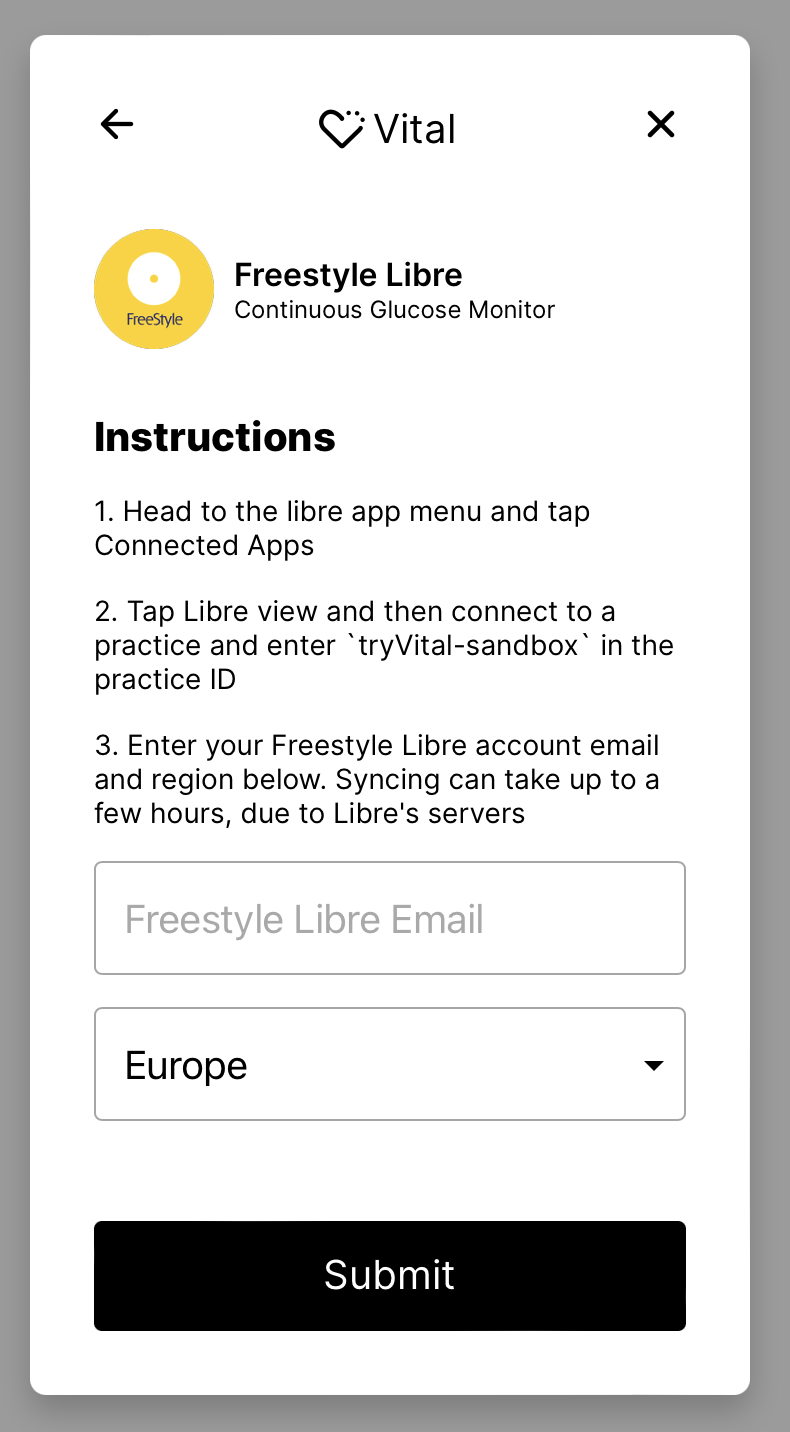
### Junction Link Widget
To connect your user to Junction via the Link Widget you can follow the guide [here](/wearables/connecting-providers/launching_link).
### Supported Regions
#### 🇺🇸 Junction US region
| Region Code | Region |
| ----------- | ------------- |
| `ca` | Canada |
| `hk` | Hong Kong |
| `in` | India |
| `kr` | South Korea |
| `ph` | Philippines |
| `sg` | Singapore |
| `tw` | Taiwan |
| `us`\* | United States |
*(\*) Default if region is unspecified.*
#### 🇪🇺 Junction EU region
| Region Code | Region |
| ----------- | -------------- |
| `ar` | Argentina |
| `at` | Austria |
| `au` | Australia |
| `be` | Belgium |
| `bh` | Bahrain |
| `br` | Brazil |
| `ch` | Switzerland |
| `cl` | Chile |
| `co` | Colombia |
| `cz` | Czechia |
| `de` | Germany |
| `dk` | Denmark |
| `eg` | Egypt |
| `es` | Spain |
| `fi` | Finland |
| `fr` | France |
| `gb`\* | United Kingdom |
| `gr` | Greece |
| `hk` | Hong Kong |
| `hr` | Croatia |
| `ie` | Ireland |
| `il` | Israel |
| `in` | India |
| `it` | Italy |
| `jo` | Jordan |
| `kr` | South Korea |
| `kw` | Kuwait |
| `lb` | Lebanon |
| `lu` | Luxembourg |
| `mx` | Mexico |
| `nl` | Netherlands |
| `no` | Norway |
| `nz` | New Zealand |
| `om` | Oman |
| `ph` | Philippines |
| `pl` | Poland |
| `pt` | Portugal |
| `qa` | Qatar |
| `sa` | Saudi Arabia |
| `se` | Sweden |
| `sg` | Singapore |
| `si` | Slovenia |
| `sk` | Slovakia |
| `tr` | Türkiye |
| `tw` | Taiwan |
| `za` | South Africa |
*(\*) Default if region is unspecified.*
### Bring Your Own Practice
`freestyle_libre` custom practice connections are available for [the Scale plan](https://tryvital.io/pricing).
Get in touch with [Junction Support](/home/getting-support) to request the region-specific Junction practice email address.
Invite the Junction practice email address to join your LibreView practice as a **Care Team Admin**.
Inform Junction support of the invitation, and wait for the support acknowledgment of successful practice connection.
Once the connection is established, Junction Link would recognize all patient emails having connected to your LibreView practice.
These patients do not need to connect separately to the [Junction practices](#using-junction-practices).
#### Binding a Team to a Practice
This feature is available for [the Scale plan](https://tryvital.io/pricing) and requires a custom practice to be set up first.
By default, when a patient connects via Junction Link, the patient search runs across all practices that
Junction is **Care Team Admin** of. You can bind a team to a specific LibreView practice to restrict this. When a
practice binding is configured, a patient will only be able to connect if they are a member of that practice.
You can manage your team's practice bindings through either the **Dashboard** or the **API**:
* **Dashboard**: Navigate to your team's **Custom Credentials** page and set up the `Freestyle Libre` provider
with your Practice ID.
* **API**: Use the [Team Custom Credentials API](/api-reference/org-management/team-custom-credentials/upsert-team-custom-credentials)
with the `freestyle_libre` provider. The `client_id` field should be set to your **LibreView Practice ID**.
The Practice ID is the identifier you chose when creating your practice in the LibreView portal. The match is case-insensitive.
For `freestyle_libre` practice bindings, only the Practice ID is required. The `client_secret`, `details`, and
`redirect_url_override` fields are not supported and must be omitted when using the API.
Practice bindings only affect new connections. Existing connections will continue to sync regardless of
whether a binding is added, changed, or removed.
### Using Junction Practices
You can use a Junction practice to test the integration with Freestyle Libre.
This modality is available to all subscriptions.
Junction has two LibreView Practices that are available in all supported regions:
| Environment | Practice Name |
| ----------- | ---------------- |
| Sandbox | tryVital-sandbox |
| Production | tryVital |
You need to ask your user to add one of the above practices in their Libre App. Once that's done, data will start flowing.
### Junction Link Widget
To connect your user to Junction via the Link Widget you can follow the guide [here](/wearables/connecting-providers/launching_link).
 ### Junction Link API (custom widget)
1. To connect to Freestyle Libre, you must create a Junction Link token.
```python Python theme={null}
token_response = client.link.token(user_id="")
```
```typescript TypeScript theme={null}
const tokenResponse = await client.link.token({ userId: "" });
```
```java Java theme={null}
var tokenResponse = client.link().token(
LinkTokenExchange.builder()
.userId("")
.build()
);
```
```go Go theme={null}
tokenResponse, err := c.Link.Token(context.TODO(), &junction.LinkTokenExchange{
UserId: "",
})
if err != nil {
return err
}
fmt.Printf("Received data %s\n", tokenResponse)
```
2. Libre is an [email](/api-reference/link/link-email-provider) provider.
This means that when connecting a user we have to use
the connect email provider method, passing in the email of the user's Libre account and region in short form.
```python Python theme={null}
linkResponse = client.link.connect_email_auth_provider(
email="",
vital_link_token=token_response.link_token,
)
```
```typescript TypeScript theme={null}
const connectEmailResponse = await client.link.connectEmailAuthProvider({
provider: "freestyle_libre",
email: "",
vitalLinkToken: tokenResponse.linkToken,
});
```
```java Java theme={null}
var data = client.link().connectEmailAuthProvider(
"freestyle_libre",
EmailProviderAuthLink.builder()
.email("")
.vitalLinkToken(tokenResponse.getLinkToken())
.build()
);
```
```go Go theme={null}
emailAuth, err := c.Link.ConnectEmailAuthProvider(context.TODO(), &junction.EmailProviderAuthLink{
Provider: "freestyle_libre",
VitalLinkToken: &tokenResponse.LinkToken,
Email: "",
})
if err != nil {
return err
}
fmt.Printf("Received data %s\n", emailAuth)
```
Once this is complete, we will start syncing data from their [Libre account](/webhooks/introduction).
### Junction Link API (custom widget)
1. To connect to Freestyle Libre, you must create a Junction Link token.
```python Python theme={null}
token_response = client.link.token(user_id="")
```
```typescript TypeScript theme={null}
const tokenResponse = await client.link.token({ userId: "" });
```
```java Java theme={null}
var tokenResponse = client.link().token(
LinkTokenExchange.builder()
.userId("")
.build()
);
```
```go Go theme={null}
tokenResponse, err := c.Link.Token(context.TODO(), &junction.LinkTokenExchange{
UserId: "",
})
if err != nil {
return err
}
fmt.Printf("Received data %s\n", tokenResponse)
```
2. Libre is an [email](/api-reference/link/link-email-provider) provider.
This means that when connecting a user we have to use
the connect email provider method, passing in the email of the user's Libre account and region in short form.
```python Python theme={null}
linkResponse = client.link.connect_email_auth_provider(
email="",
vital_link_token=token_response.link_token,
)
```
```typescript TypeScript theme={null}
const connectEmailResponse = await client.link.connectEmailAuthProvider({
provider: "freestyle_libre",
email: "",
vitalLinkToken: tokenResponse.linkToken,
});
```
```java Java theme={null}
var data = client.link().connectEmailAuthProvider(
"freestyle_libre",
EmailProviderAuthLink.builder()
.email("")
.vitalLinkToken(tokenResponse.getLinkToken())
.build()
);
```
```go Go theme={null}
emailAuth, err := c.Link.ConnectEmailAuthProvider(context.TODO(), &junction.EmailProviderAuthLink{
Provider: "freestyle_libre",
VitalLinkToken: &tokenResponse.LinkToken,
Email: "",
})
if err != nil {
return err
}
fmt.Printf("Received data %s\n", emailAuth)
```
Once this is complete, we will start syncing data from their [Libre account](/webhooks/introduction).